Appearance
Week 04 Laboratory Sample Solutions
Objectives
- Practice writing shell scripts for real tasks.
- Practice processing collections of files with shell scripts.
Preparation
Before the lab you should re-read the relevant lecture slides and their accompanying examples.
Getting Started
Set up for the lab by creating a new directory called lab04 and changing to this directory.
mkdir lab04
cd lab04
There are some provided files for this lab which you can fetch with this command:
2041 fetch lab04If you're not working at CSE, you can download the provided files as a zip file or a tar file.
Exercise: Converting Images from JPG to PNG
Write a POSIX-compatible shell script jpg2png.sh which converts all images in the current directory in JPEG format to PNG format.
You can assume that JPEG files and only JPEG files have the suffix jpg.
If the conversion is successful the JPEG file should be removed.
Your script should stop with the error message shown below and exit status 1 if a destination PNG file already exists.
unzip images.zip
Archive:  images.zip
  inflating: Johannes Vermeer - The Girl With The Pearl Earring.jpg
  inflating: labelled_penguins.jpg
  inflating: nautilus.jpg
  inflating: panic.jpg
  inflating: penguins.jpg
  inflating: shell.jpg
  inflating: stingray.jpg
  inflating: treefrog.jpg
./jpg2png.sh
ls -1
'Johannes Vermeer - The Girl With The Pearl Earring.png'
labelled_penguins.png
nautilus.png
panic.png
penguins.png
shell.png
stingray.png
treefrog.png
wget https://cgi.cse.unsw.edu.au/~cs2041/24T1/activities/jpg2png/files.ln/penguins.jpg
ls -1
'Johannes Vermeer - The Girl With The Pearl Earring.png'
labelled_penguins.png
nautilus.png
panic.png
penguins.jpg
penguins.png
shell.png
stingray.png
treefrog.png
./jpg2png.sh
penguins.png already exists
Make the first line of your shell-script #!/bin/dash
You may find sed(1) and a sub-shell useful.
The tool convert(1), a part of ImageMagick, will convert between many image formats; for example:
convert penguins.jpg penguins.pngYou may not use non-POSIX-compatible shell features such as bash extensions.
Your script must work when run by/bin/dashon a CSE system.
You are not permitted to rely on the extra features provided by/bin/bashor/bin/sh.
You can assume anything that works with the version of/bin/dashon CSE systems is POSIX compatible.You may not use Perl, C, Python, or any other language.
When you think your program is working, you can use autotest to run some simple automated tests:
2041 autotest jpg2pngWhen you are finished working on this exercise, you must submit your work by running give:
give cs2041 lab04_jpg2png jpg2png.shbefore Monday 11 March 12:00 (midday) (2024-03-11 12:00:00) to obtain the marks for this lab exercise.
Sample solution for jpg2png.sh
#!/bin/dash

for jpg_file in *.jpg; do
    png_file=$(echo "$jpg_file" | sed -E -- 's/.jpg$/.png/')
    if [ -e "$png_file" ]; then
        echo "$png_file" already exists
        exit 1
    fi
    convert "$jpg_file" "$png_file" 2> /dev/null && rm -- "$jpg_file"
done
Exercise: Email that Image?
Write a shell script email_image.sh which given a list of image files as arguments displays them one-by-one.
After the user has viewed an image the script should prompt the user for an e-mail address.
If the user does enter an email address, the script should prompt the user for a message to accompany the image and then send the image to the specified e-mail address.
./email_image.sh penguins.png treefrog.png shell.png
penguins.png displayed to screen if possible
Address to e-mail this image to? nobody@nowhere.com
Message to accompany image? Penguins are cool.
penguins.png sent to nobody@nowhere.com
treefrog.png displayed to screen if possible
Address to e-mail this image to? nobody@nowhere.com
Message to accompany image? This is a White-lipped Tree Frog
treefrog.png sent to nobody@nowhere.com
shell.png displayed to screen if possible
Address to e-mail this image to?
No email sent
Make the first line of your shell-script #!/bin/dash
The program display(1) can be used to view image files.
The program mutt(1) can be used to send mail from the command line including attachments, for example:
echo 'Penguins are cool.' | mutt -s 'penguins!' -e 'set copy=no' -a penguins.png -- nobody@nowhere.comA standard SSH connection won't be able to display an image to the screen and will instead display an error.
This is expected, try vlab or a lab computer to successfully display the image.
You may not use non-POSIX-compatible shell features such as bash extensions.
Your script must work when run by/bin/dashon a CSE system.
You are not permitted to rely on the extra features provided by/bin/bashor/bin/sh.
You can assume anything that works with the version of/bin/dashon CSE systems is POSIX compatible.You may not use Perl, C, Python, or any other language.
There is no autotest and no automarking of this question.
When you are finished working on this exercise, demonstrate your work to another student in your lab and ask them to enter a peer assessment. It is preferred you do this during your lab, but if this is not possible you may demonstrate your work to any other COMP(2041|9044) student before Monday 11 March 12:00 (midday) (2024-03-11 12:00:00). Note, you must also submit the work with give.
When you are finished working on this exercise, you must submit your work by running give:
give cs2041 lab04_email_image email_image.shbefore Monday 11 March 12:00 (midday) (2024-03-11 12:00:00) to obtain the marks for this lab exercise.
Sample solution for email_image.sh
#!/bin/dash

for png_file in "$@"; do
  display "$png_file"
  echo -n "Address to e-mail this image to? "
  read address
  if test -n "$address"; then
    echo -n "Message to accompany image? "
    read message
    echo "$message" | mutt -s 'image' -a "$png_file" -e 'set copy=no' -- "$address"
    echo "$png_file sent to $address"
  else
    echo "No email sent"
  fi
done
Exercise: Date A Penguin?
Write a POSIX-compatible shell script date_image.sh which given a list of image files as arguments changes each file so it has a label added to the image indicating the time it was taken. You can assume the last-modification time of the image file is the time it was taken.
For example: if we run these commands:
ls -l penguins.jpg
-rw-r--r-- 1 andrewt andrewt 58092 Mar 16 16:08 penguins.jpg
./date_image.sh penguins.jpg
display penguins.jpg
Then penguins.jpg should have been be modified to look like this: 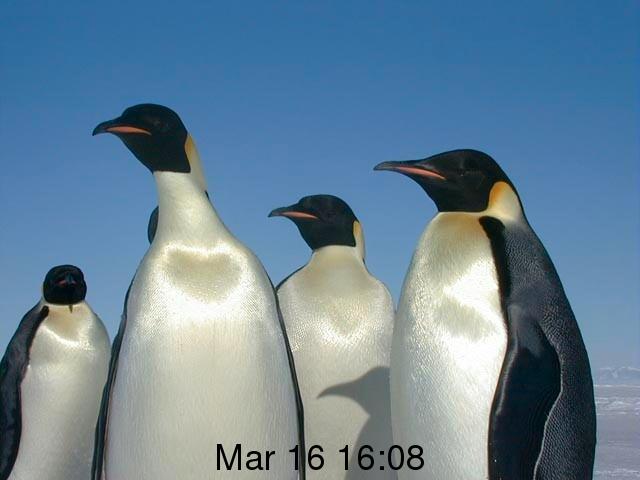
Make the first line of your shell-script #!/bin/dash
The program convert(1) or mogrify(1) can be used to label an image.
Eg:
convert -gravity south -pointsize 36 -draw "text 0,10 'Andrew rocks'" penguins.jpg temporary_file.jpgsed(1) and/or cut(1) may be useful to extract the date and time from ls(1)'s output.
find(1) can also be used for date and time extract.
convert(1) produces confusing messages if you don't get its option syntax exactly right.
You may not use non-POSIX-compatible shell features such as bash extensions.
Your script must work when run by/bin/dashon a CSE system.
You are not permitted to rely on the extra features provided by/bin/bashor/bin/sh.
You can assume anything that works with the version of/bin/dashon CSE systems is POSIX compatible.You may not use Perl, C, Python, or any other language.
There is no autotest and no automarking of this question.
When you are finished working on this exercise, demonstrate your work to another student in your lab and ask them to enter a peer assessment. It is preferred you do this during your lab, but if this is not possible you may demonstrate your work to any other COMP(2041|9044) student before Monday 11 March 12:00 (midday) (2024-03-11 12:00:00). Note, you must also submit the work with give.
When you are finished working on this exercise, you must submit your work by running give:
give cs2041 lab04_date_image date_image.shbefore Monday 11 March 12:00 (midday) (2024-03-11 12:00:00) to obtain the marks for this lab exercise.
Sample solution for date_image.sh
#!/bin/dash

for image_file in "$@"; do
    last_modify_time=$(find . -name "$image_file" -printf "%t")
    mogrify -gravity south -pointsize 36 -draw "text 0,10 '$last_modify_time'" "$image_file" &&
    touch -d "$last_modify_time" "$image_file"
done
Exercise: Tagging a Collection of Music
Andrew regularly spends time far from the internet and streaming music services such as Spotify, so he has a large collection of MP3 files containing music.
Andrew has a problem:
The ID3 tags in the MP3 files in his music collection are incorrect.
Unfortunately Andrew's favourite player software organises music using the information from these ID3 tags.
Your task it to fix Andrew's problem by set the ID3 tags to the correct values.
Fortunately the correct value for the tags can be retrieved from the file names and the names of the directories the files are in.
Your task is to write a POSIX-compatible shell script tag_music.sh which sets the ID3 tags of MP3 files using the information from file names and directory names.
You can assume the names of files and directories follow a standard format.
You can determine this format by look at the files in Andrew's music collection.
unzip music.zip
Archive:  music.zip
   creating: music/
...
The command id3 can be used to list the value of ID3 tags in an MP3 file.
For example:
id3 -l 'music/Triple J Hottest 100, 2013/1 - Riptide - Vance Joy.mp3'
music/Triple J Hottest 100, 2013/1 - Riptide - Vance Joy.mp3:
Title  : Andrew Rocks                    Artist: Andrew
Album  : Best of Andrew                  Year: 2038, Genre: Unknown (255)
Comment:                                 Track: 42
But, as you can see, the ID3 tags of this music file have been accidentally over-written.
The ID3 tags should be:
id3 -l 'music/Triple J Hottest 100, 2013/1 - Riptide - Vance Joy.mp3'
music/Triple J Hottest 100, 2013/1 - Riptide - Vance Joy.mp3:
Title  : Riptide                         Artist: Vance Joy
Album  : Triple J Hottest 100, 2013      Year: 2013, Genre: Unknown (255)
Comment:                                 Track: 1
Fortunately, all the information needed to fix the ID3 tags is available in the name of the file and the name of the directory it is in.
You will write a shell script tag_music.sh which takes the name of 1 or more directories as arguments and fixes the ID3 tags of the all MP3 files in that directory.
For example:
./tag_music.sh 'music/Triple J Hottest 100, 2015'
id3 -l 'music/Triple J Hottest 100, 2015/4 - The Less I Know The Better - Tame Impala.mp3'
music/Triple J Hottest 100, 2015/4 - The Less I Know the Better - Tame Impala.mp3:
Title  : The Less I Know the Better      Artist: Tame Impala
Album  : Triple J Hottest 100, 2015      Year: 2015, Genre: Unknown (255)
Comment:                                 Track: 4
./tag_music.sh music/*
id3 -l 'music/Triple J Hottest 100, 1995/10 - Greg! The Stop Sign!! - TISM.mp3'
music/Triple J Hottest 100, 1995/10 - Greg! The Stop Sign!! - TISM.mp3:
Title  : Greg! The Stop Sign!!           Artist: TISM
Album  : Triple J Hottest 100, 1995      Year: 1995, Genre: Unknown (255)
Comment:                                 Track: 10
id3 -l 'music/Triple J Hottest 100, 1999/1 - These Days - Powderfinger.mp3'
music/Triple J Hottest 100, 1999/1 - These Days - Powderfinger.mp3:
Title  : These Days                      Artist: Powderfinger
Album  : Triple J Hottest 100, 1999      Year: 1999, Genre: Unknown (255)
Comment:                                 Track: 1
id3 -l 'music/Triple J Hottest 100, 2012/2 - Little Talks - Of Monsters and Men.mp3'
music/Triple J Hottest 100, 2012/2 - Little Talks - Of Monsters and Men.mp3:
Title  : Little Talks                    Artist: Of Monsters and Men
Album  : Triple J Hottest 100, 2012      Year: 2012, Genre: Unknown (255)
Comment:                                 Track: 2
Your script should determine Title, Artist, Track, Album, and Year from the directory and filename.
Your script should not change the Genre or Comment fields.
Make the first line of your shell-script #!/bin/dash
id3(1) is a tool for manipulating ID3 tags.
It can be difficult debugging your script on Andrew's music collection.
In cases like these it usually worth creating a smaller data set for initial debugging.
Such a tiny data set is available in tiny_music.zip if you want to use it for debugging.
This dataset is used in the first autotests.
unzip tiny_music.zip
Archive:  tiny_music.zip
   creating: tiny_music/
...
You may not use non-POSIX-compatible shell features such as bash extensions.
Your script must work when run by/bin/dashon a CSE system.
You are not permitted to rely on the extra features provided by/bin/bashor/bin/sh.
You can assume anything that works with the version of/bin/dashon CSE systems is POSIX compatible.You may not use Perl, C, Python, or any other language.
When you think your program is working, you can use autotest to run some simple automated tests:
2041 autotest tag_musicWhen you are finished working on this exercise, you must submit your work by running give:
give cs2041 lab04_tag_music tag_music.shbefore Monday 11 March 12:00 (midday) (2024-03-11 12:00:00) to obtain the marks for this lab exercise.
Sample solution for tag_music.sh
#!/bin/dash

for album_pathname in "$@"; do
    album=$(basename "$album_pathname")
    year=$(echo "$album" | sed -E 's/.* //')

    for mp3_pathname in "$album_pathname"/*.mp3; do
        mp3_filename=$(basename "$mp3_pathname" .mp3)
        track=$(echo "$mp3_filename" | sed -E 's/ - .*//')
        title=$(echo "$mp3_filename" | sed -E 's/^[0-9]* - //; s/ - .*//')
        artist=$(echo "$mp3_filename" | sed -E 's/.* - //')
        id3 -t "$title" -T "$track" -a "$artist" -A "$album" -y "$year" "$mp3_pathname" > /dev/null
    done
done
Challenge Exercise: Creating A Fake Music Collection
The test data for the previous question is not really Andrew's music collection.
All the mp3 files contain identical contents.
The directories and filenames were created from the source of this web page.
Write a POSIX-compatible shell script create_music.sh which uses the above webpage to create exactly the same directories and files as in the test data set supplied above.
Your script should take 2 arguments: the name of an MP3 file to use as the contents of the MP3 files you create and the directory in which to create the test data.
For example:
mkdir my_fake_music
ls my_fake_music
./create_music.sh sample.mp3 my_fake_music
ls my_fake_music
'Triple J Hottest 100, 1993'  'Triple J Hottest 100, 1999'  'Triple J Hottest 100, 2005'  'Triple J Hottest 100, 2011'  'Triple J Hottest 100, 2017'
'Triple J Hottest 100, 1994'  'Triple J Hottest 100, 2000'  'Triple J Hottest 100, 2006'  'Triple J Hottest 100, 2012'  'Triple J Hottest 100, 2018'
'Triple J Hottest 100, 1995'  'Triple J Hottest 100, 2001'  'Triple J Hottest 100, 2007'  'Triple J Hottest 100, 2013'  'Triple J Hottest 100, 2019'
'Triple J Hottest 100, 1996'  'Triple J Hottest 100, 2002'  'Triple J Hottest 100, 2008'  'Triple J Hottest 100, 2014'  'Triple J Hottest 100, 2020'
'Triple J Hottest 100, 1997'  'Triple J Hottest 100, 2003'  'Triple J Hottest 100, 2009'  'Triple J Hottest 100, 2015'  'Triple J Hottest 100, 2021'
'Triple J Hottest 100, 1998'  'Triple J Hottest 100, 2004'  'Triple J Hottest 100, 2010'  'Triple J Hottest 100, 2016'  'Triple J Hottest 100, 2022'
ls -1 'my_fake_music/Triple J Hottest 100, 2007'
'1 - Knights of Cydonia - Muse.mp3'
"10 - Don't Fight It - The Panics.mp3"
'2 - Straight Lines - Silverchair.mp3'
'3 - On Call - Kings of Leon.mp3'
'4 - Better Than - John Butler Trio.mp3'
'5 - This Heart Attack - Faker.mp3'
'6 - The Pretender - Foo Fighters.mp3'
'7 - Harder, Better, Faster, Stronger (Alive 2007) - Daft Punk.mp3'
'8 - Hang Me Up to Dry - Cold War Kids.mp3'
"9 - I'll Kill Her - Soko.mp3"
ls -1 'my_fake_music/Triple J Hottest 100, 2022'
'1 - Say Nothing - Flume featuring May-a.mp3'
'10 - Glimpse of Us - Joji.mp3'
'2 - B.O.T.A. (Baddest of Them All) - Eliza Rose and Interplanetary Criminal.mp3'
'3 - Hardlight - Spacey Jane.mp3'
'4 - Bad Habit - Steve Lacy.mp3'
"5 - It's Been a Long Day - Spacey Jane.mp3"
'6 - Sitting Up - Spacey Jane.mp3'
'7 - About Damn Time - Lizzo.mp3'
'8 - Stars in My Eyes - Ball Park Music.mp3'
'9 - In the Wake of Your Leave - Gang of Youths.mp3'
Make the first line of your shell-script #!/bin/dash
Instead of reading the HTML directly
wikipedia provides a raw version (wikitext) of the page which is easier to parse.
wget -q -O- 'https://en.wikipedia.org/w/index.php?title=Triple_J_Hottest_100&oldid=1156459050&action=raw'You may find this web page useful for dealing with unicode characters, such as the en dash.
You may not use non-POSIX-compatible shell features such as bash extensions.
Your script must work when run by/bin/dashon a CSE system.
You are not permitted to rely on the extra features provided by/bin/bashor/bin/sh.
You can assume anything that works with the version of/bin/dashon CSE systems is POSIX compatible.You may not use Perl, C, Python, or any other language.
When you think your program is working, you can use autotest to run some simple automated tests:
2041 autotest create_musicWhen you are finished working on this exercise, you must submit your work by running give:
give cs2041 lab04_create_music create_music.shbefore Monday 11 March 12:00 (midday) (2024-03-11 12:00:00) to obtain the marks for this lab exercise.
Sample solution for create_music.sh
#!/bin/dash

mp3_file="$1"
base_dir="$2"

wget -q -O- 'https://en.wikipedia.org/w/index.php?title=Triple_J_Hottest_100&oldid=1156459050&action=raw' |
while read -r line; do

    # look for line which is start of Hottest 100 list for a year
    case "$line" in
      *'File'*)
        continue
        ;;
      *'[[Triple J Hottest 100, '[0-9][0-9][0-9][0-9]'|'[0-9][0-9][0-9][0-9]']]'*)
        ;;
      *)
        continue
        ;;
    esac

    # create a directory for a Hottest 100 year
    album=$(echo "$line" | sed 's/.*\[\[//;s/|.*//')
    year=$(echo "$album" | sed 's/.*\ //')
    dir="$base_dir/Triple J Hottest 100, $year"
    # shellcheck disable=SC2174
    mkdir -pm 755 "$dir"

    # read top 10 songs for year
    track=1
    while read -r line && [ $track -le 10 ]; do
        case "$line" in
          '#'*)
            ;;
          *)
            continue
            ;;
        esac

        # remove links to wikipedia pages
        line=$(echo "$line" | sed 's/[^[]*|//g')

        # change slashes to hyphens - because can't have / in a filename
        line=$(echo "$line" | sed 's/\//-/g')

        # remove some formatting characters
        line=$(echo "$line" | tr -d '[]"#')

        # break line in two at en dash byte codes
        artist=$(echo "$line" | sed 's/\xe2\x80\x93.*//')
        title=$(echo "$line" | sed 's/.*\xe2\x80\x93//')

        # trim leading spaces
        artist=$(echo "$artist" | sed 's/^ *//')
        title=$(echo "$title" | sed 's/^ *//')

        # trim trailing spaces
        artist=$(echo "$artist" | sed 's/ *$//')
        title=$(echo "$title" | sed 's/ *$//')

        file="$dir/$track - $title - $artist.mp3"
        cp -p "$mp3_file" "$file"
        track=$((track + 1))
    done
done
Submission
When you are finished each exercises make sure you submit your work by running give.
You can run give multiple times. Only your last submission will be marked.
Don't submit any exercises you haven't attempted.
If you are working at home, you may find it more convenient to upload your work via give's web interface.
Remember you have until Week 5 Monday 12:00:00 (midday) to submit your work.
You cannot obtain marks by e-mailing your code to tutors or lecturers.
You check the files you have submitted here.
Automarking will be run by the lecturer several days after the submission deadline, using test cases different to those autotest runs for you. (Hint: do your own testing as well as running autotest.)
After automarking is run by the lecturer you can view your results here. The resulting mark will also be available via give's web interface.
Lab Marks
When all components of a lab are automarked you should be able to view the the marks via give's web interface or by running this command on a CSE machine:
2041 classrun -sturecCOMP(2041|9044) 24T1: Software Construction is brought to you by
the School of Computer Science and Engineering
at the University of New South Wales, Sydney.
For all enquiries, please email the class account at cs2041@cse.unsw.edu.au
CRICOS Provider 00098G